
Menu Navigation#
This section covers some basics of navigating the device menus, which should be common to most of the user interface. A few specific examples are shown, but the concepts should apply everywhere.
Main Menu#
To get to the main menu, press the  key from the home screen.
The main menu is an example of an item list menu, which is the most common way of selecting an item from a list.
key from the home screen.
The main menu is an example of an item list menu, which is the most common way of selecting an item from a list.
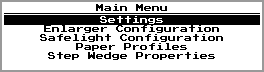
Fig. 3 Main Menu#
When on one of these menus, you can typically perform the following actions:
Press
 or
or  to move up and down in the list
Press
to select the currently highlighted itemPress
 to leave the list menu
Number Entry#
There are some screens used for entry of numbers. These come in many forms, but generally look something like this:
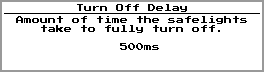
Fig. 4 Number Entry Screen#
On one of these screens, you can typically perform the following actions:
Press
or to change the value by a small amountPress
 or
or  to change the value by a larger amount
Press
to accept the new number valuePress
to leave without accepting the new number value
Text Entry#
Various profile configurations let you enter a text description to better keep track of them. Text entry is a little more complicated, and is done through a screen like this:
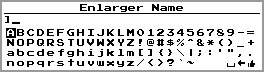
Fig. 5 Text Entry Screen#
The actions for this screen are:
Use
, , , and as arrow keys to navigate around the letter gridPress
 to add the currently highlighted letter or symbol
The three symbols in the lower right corner are special, and perform different actions when pressing
for them. Specifically, they insert a space, remove the last character, and accept the input.Press
as another way to accept the current input textPress
to leave without accepting the new text value
Another way to enter text is via an attached USB keyboard.
Save Prompt#
On many screens, after making a change and pressing , you will see a prompt like this:
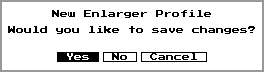
Fig. 6 Save Prompt#
You can select “Yes” to accept the changes, “No” to reject them, or “Cancel” to return to the previous screen.